Draw a Flag Controls & Drawing Tools
Brush, fill, color pick, undo, clear, and submit for every device in Draw a Flag!
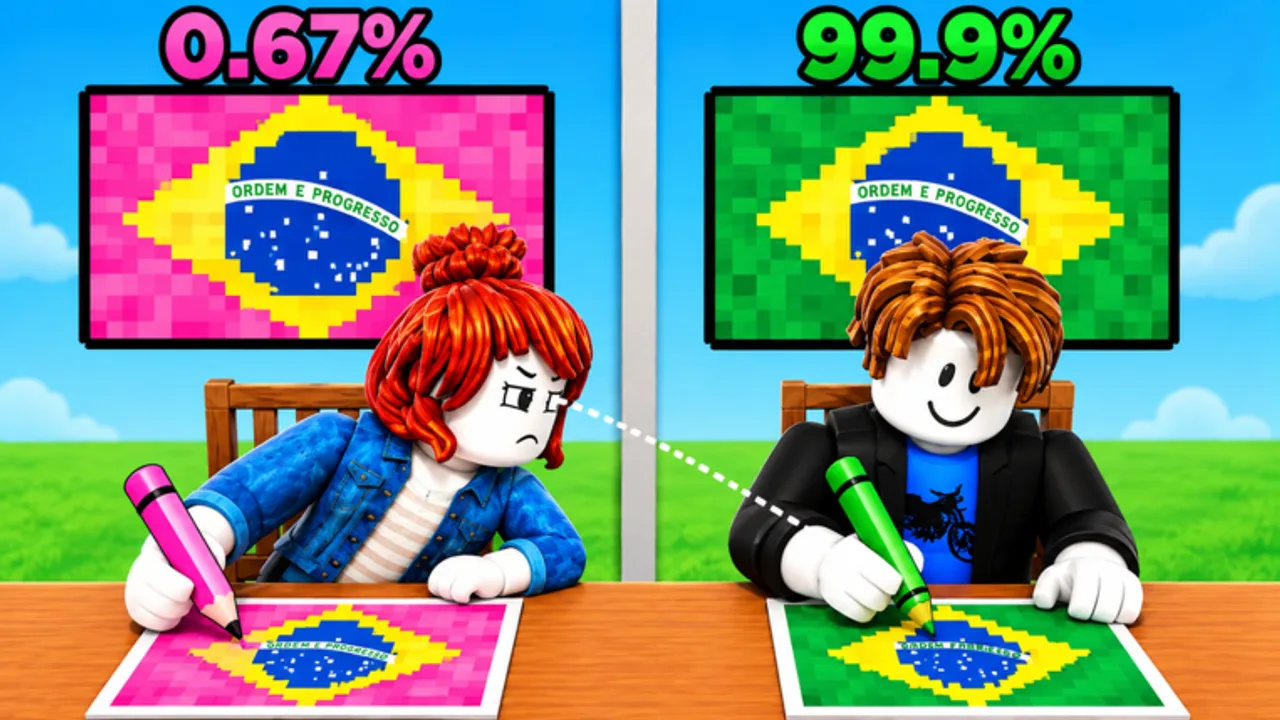
Fast hands only help if you know the tools. Draw a Flag! runs on Roblox across PC, mobile, and console-style inputs, and every duel is decided on a pixel canvas with a shared set of drawing actions. This controls guide explains how to think about brush, fill, color pick, undo, clear, and submit so you spend the timer on the flag—not on hunting buttons. Pair it with Getting Started for match flow and How to Draw Flags for technique.
Meow Forge’s Party & Casual hit keeps the fantasy simple: recreate the prompted national flag better than your opponent. Server sessions can feel busy with up to around 25 players nearby, but once a round starts your focus collapses to the canvas UI. Learn that UI cold.
Mental model of the canvas
Treat the screen as four zones:
- Prompt / country name — Read it fully before the first stroke.
- Pixel canvas — Where accuracy is measured.
- Tool rack — Brush, fill, eraser or clear, undo, sometimes zoom or brush size.
- Palette + submit — Color choice and the commit button that locks your entry.
Glance at all four when the round begins. If any control is missing from your peripheral vision, drag or scroll the UI until it is. Losing five seconds every color change is how easy flags become losses.
Brush tool
The brush (or pencil) paints individual pixels or small clusters. Use it for:
- Stars, thin crosses, and emblem outlines
- Fixing edges after a fill
- Small cantons when fill would spill
On PC, click-drag smoothly along grid lines. On mobile, rest the device so your thumb moves in short taps rather than long shaky strokes. If brush size exists, use a larger size for fields only when fill is unavailable; otherwise prefer fill for big areas and keep the brush fine for detail.
Avoid “scribble shading.” Flags are flat color regions. Extra dithering rarely helps accuracy and burns time.
Fill / bucket
Fill is your speed tool. Click a closed region to flood it with the active color. Best uses:
- Full background fields
- Wide stripes after you mark boundaries
- Cantons once their rectangle is sealed
Open gaps in a boundary let fill spill into neighboring bands—that mistake is expensive. If spill happens, undo immediately, seal the gap with the brush, then fill again. Do not try to repaint a spill by hand unless undo is gone.
Color pick and palette discipline
Select colors from the palette before major fills. If a eyedropper / color pick tool is available, sample a clean pixel of a region you already painted so later touch-ups match exactly. Switching between two near-identical blues mid-flag creates blotches the grader notices.
Workflow habit: choose color → fill or brush the whole region → only then change color. Keep the palette near your dominant hand’s resting position on mobile so you are not stretching across the screen every swap.
Undo, clear, and panic recovery
Undo reverses the last stroke or fill. Mash it the moment a spill or wrong stripe appears. Chained undos can roll back further if the UI supports a history stack—learn how deep that stack is in a private practice round if possible.
Clear wipes the canvas. Use it only when the entire layout is wrong and enough time remains to rebuild structure. Clearing with ten seconds left is usually a loss; submit a flawed but complete flag instead.
Panic order: undo → small brush repair → simplify remaining detail → submit. Clear is last resort.
Submit without second-guessing
Submit locks your drawing for scoring. Know whether the button asks for confirmation. Leave a buffer of a few seconds so a laggy tap still counts. After submit, stop poking the canvas—focus on reading the accuracy result so you know what to practice.
Never wait for a “perfect” last star if the timer is nearly empty. Competitive timing is covered in How to Win; scoring quality is covered in Accuracy Tips.
PC-specific tips
- Keep the cursor over the canvas; flick to the palette only when changing color.
- Use steady horizontal/vertical drags for stripes; diagonal wobble shows on tricolors.
- If keyboard shortcuts exist in your client build, learn undo first.
- Sit close enough to read thin UI labels—wrong tool selection is common when the rack is tiny.
Mobile-specific tips
- Increase touch precision by zooming the page or using a stylus if you have one.
- Anchor your pinky on the device edge to stabilize brush strokes.
- Beware fat-finger undos; confirm which icon is undo versus clear.
- Rotate to landscape if the canvas becomes larger and tools less cramped.
Console / controller-friendly habits
When playing with a controller through Roblox, expect slower cursor movement. Favor fill over long brush drags. Hold a steady aim when selecting palette swatches. Give yourself an earlier submit buffer because menu navigation can cost an extra second.
Practice routine for controls mastery
Spend one short session touching every tool without caring about the country name: fill three bands, undo one, recolor with pick, place five brush stars, submit. Then play real duels. Muscle memory for the rack matters as much as flag memory.
Cross-check difficulty expectations on the Tier List, including easiest flags and hardest flags, so you know when to lean on fill-heavy plans versus brush-heavy emblems. Keep an eye on Updates if Meow Forge remaps the UI. Codes, when they exist, are tracked on Codes—as of November 2026 none are verified active—so controls practice remains the reliable upgrade path. Optional Scripts chatter does not replace learning the legitimate tool rack, and Players is there for community context when you want a break from drills.
Controls checklist before ranked-feeling duels
- I can find brush, fill, undo, clear, and submit in under one second.
- I change colors without losing sight of the timer.
- I undo spills instantly instead of painting over them.
- I submit with a few seconds left on purpose.
Master that checklist, then return to the Guides Hub and push technique pages. Draw a Flag! rewards players who treat the UI like part of the flag—not an obstacle between them and the canvas.
Frequently Asked Questions
Quick answers for Draw a Flag players.
What is the most important tool for beginners?
Fill for large fields and stripes, plus undo for instant recovery. Brush detail comes after you can lay structure quickly.
Should I clear the canvas when I make a mistake?
Only if the whole layout is wrong and you still have time to rebuild. Prefer undo and local repairs when the timer is low.
Do controls differ on mobile?
The same actions exist, but touch precision is harder. Use shorter strokes, protect undo from accidental taps, and consider landscape mode for a larger canvas.
When should I press submit?
Once the main structure and colors are correct and only minor polish remains—leave a few seconds of buffer so lag does not void the entry.
Where do I learn what to draw with these tools?
Use How to Draw Flags for the shape-first method, Accuracy Tips for scoring, and How to Win for pace decisions during duels.